Create an invoice or quote
From client to a ready PDF in three steps.
3 min · 7 steps
- 1
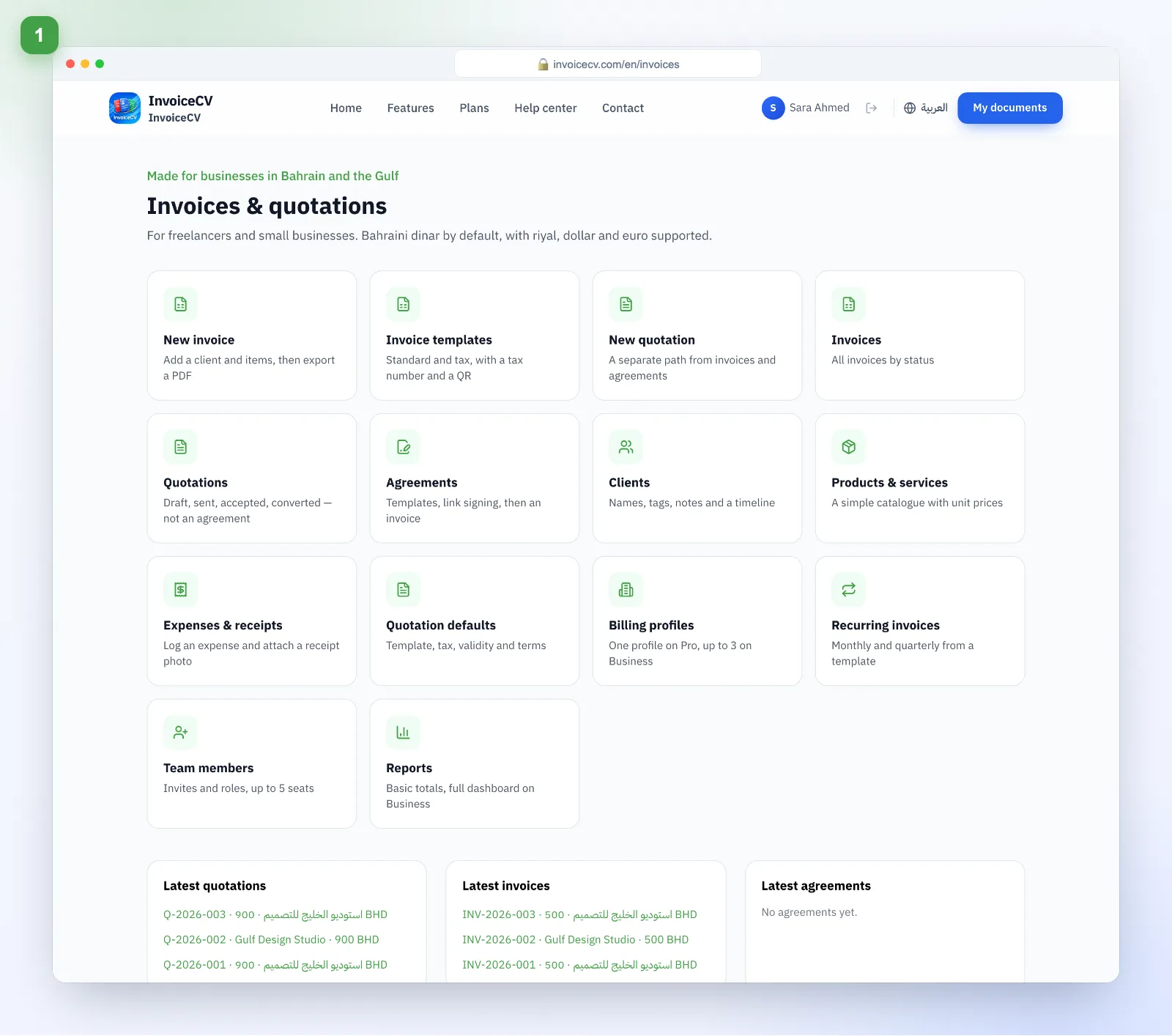
Open the invoices hub
Choose “Invoices”, then “New invoice” or “Quotation”.
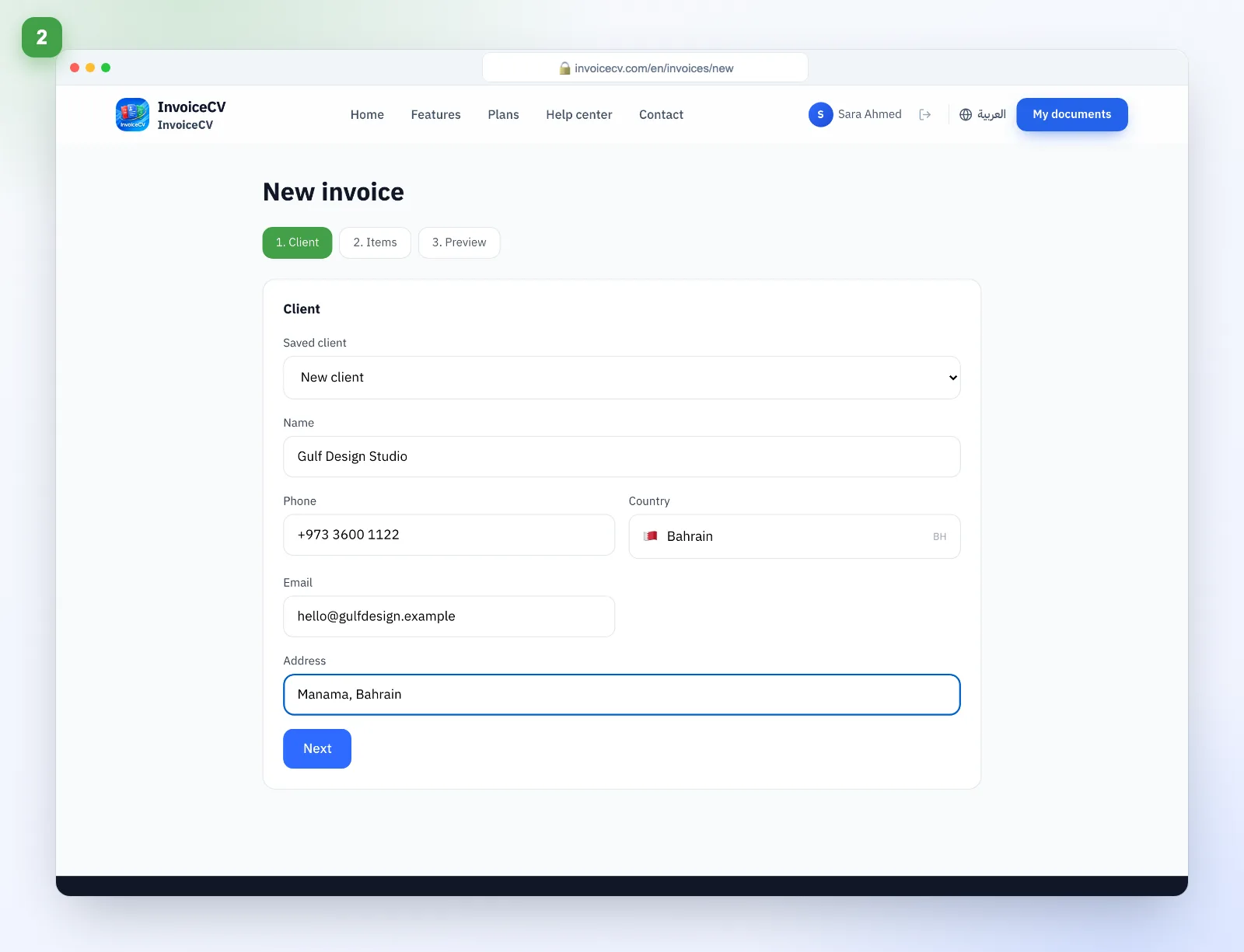
- 2
Pick the client
Select a saved client or add a new one on the spot.
- 3
Add line items
Description, quantity and price — totals are calculated for you.
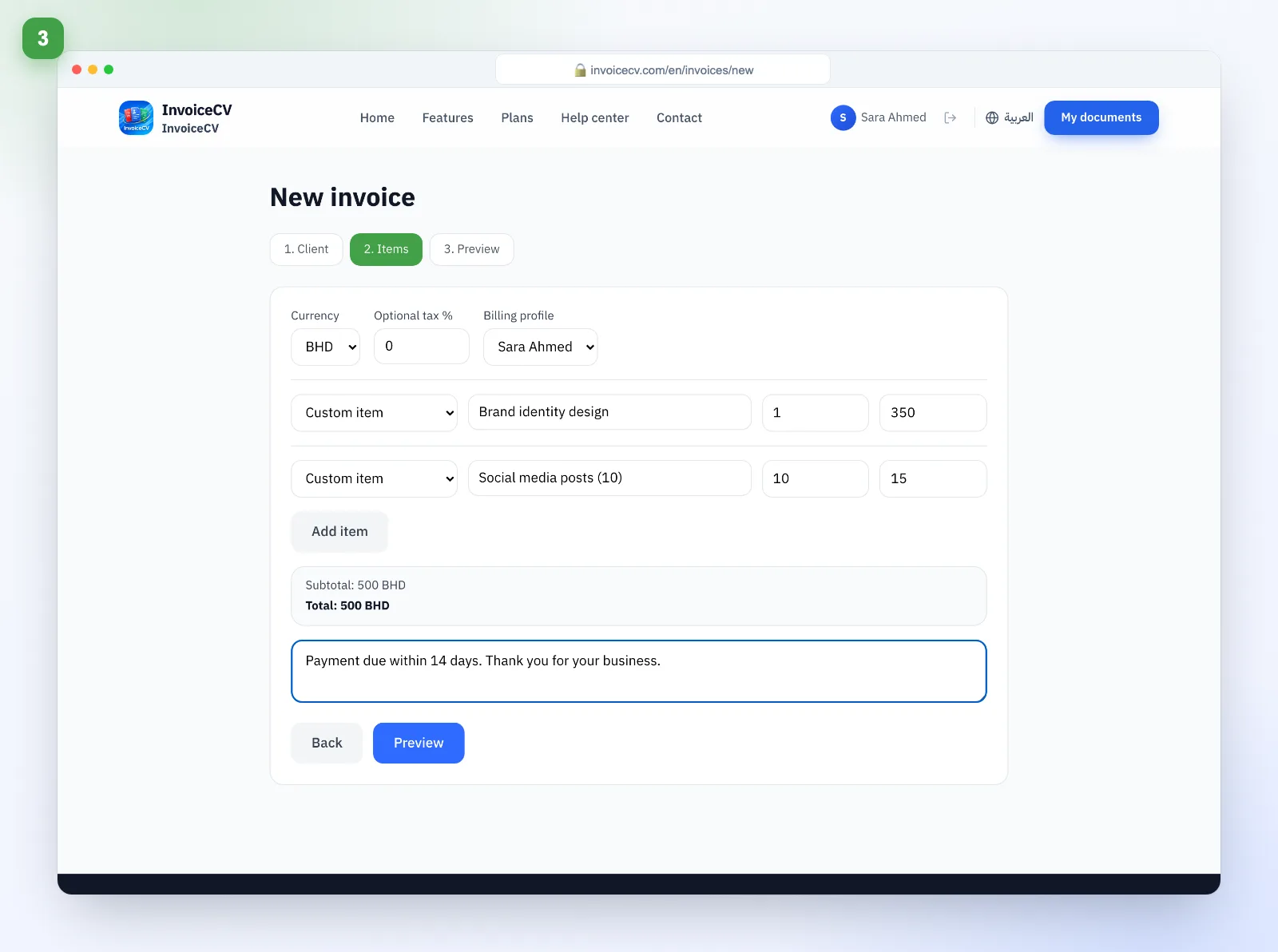
Add payment notes at the bottom so they appear on the PDF.
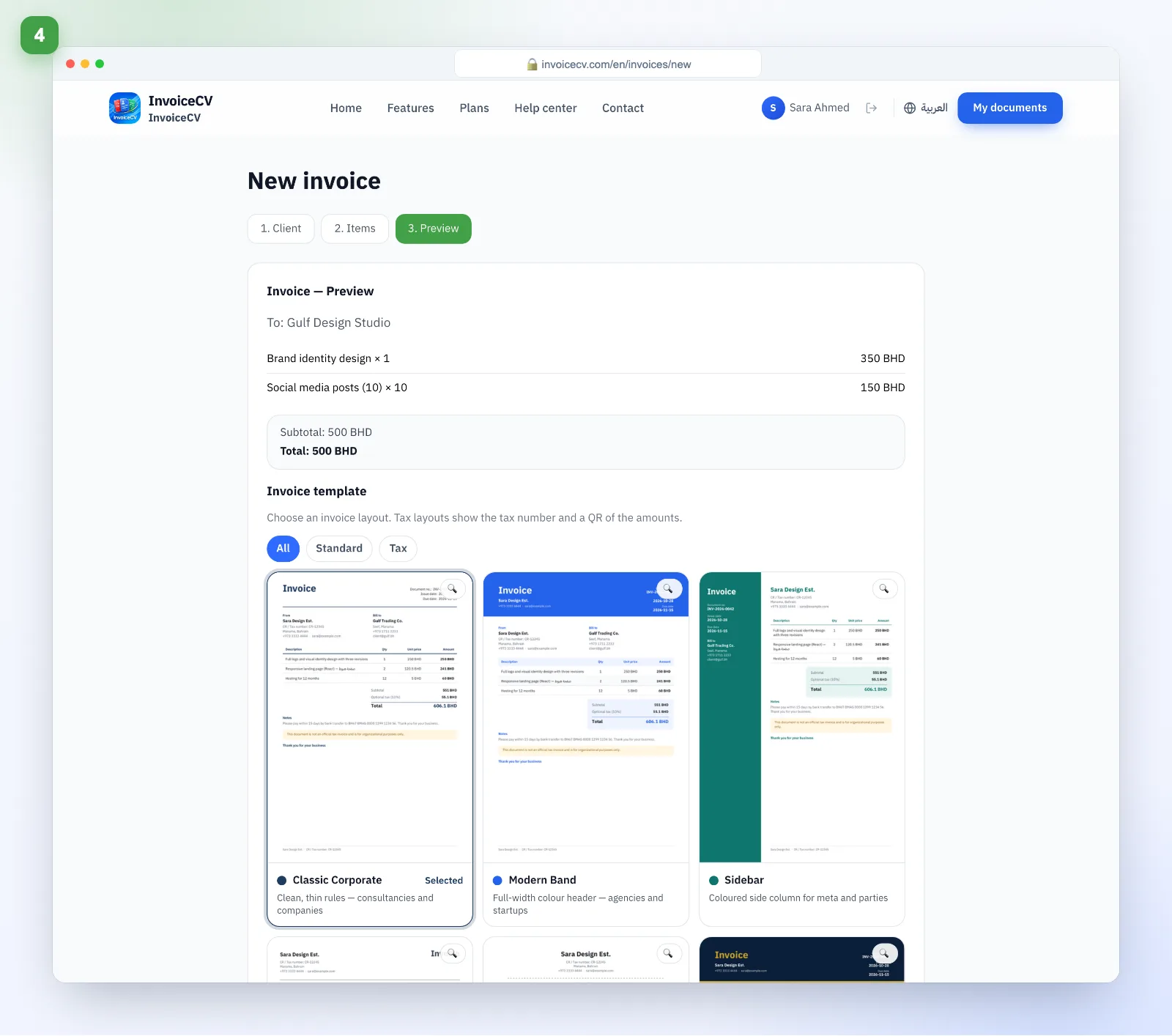
- 4
Review and pick a template
In Preview choose a design, then “Save and preview”.
- 5
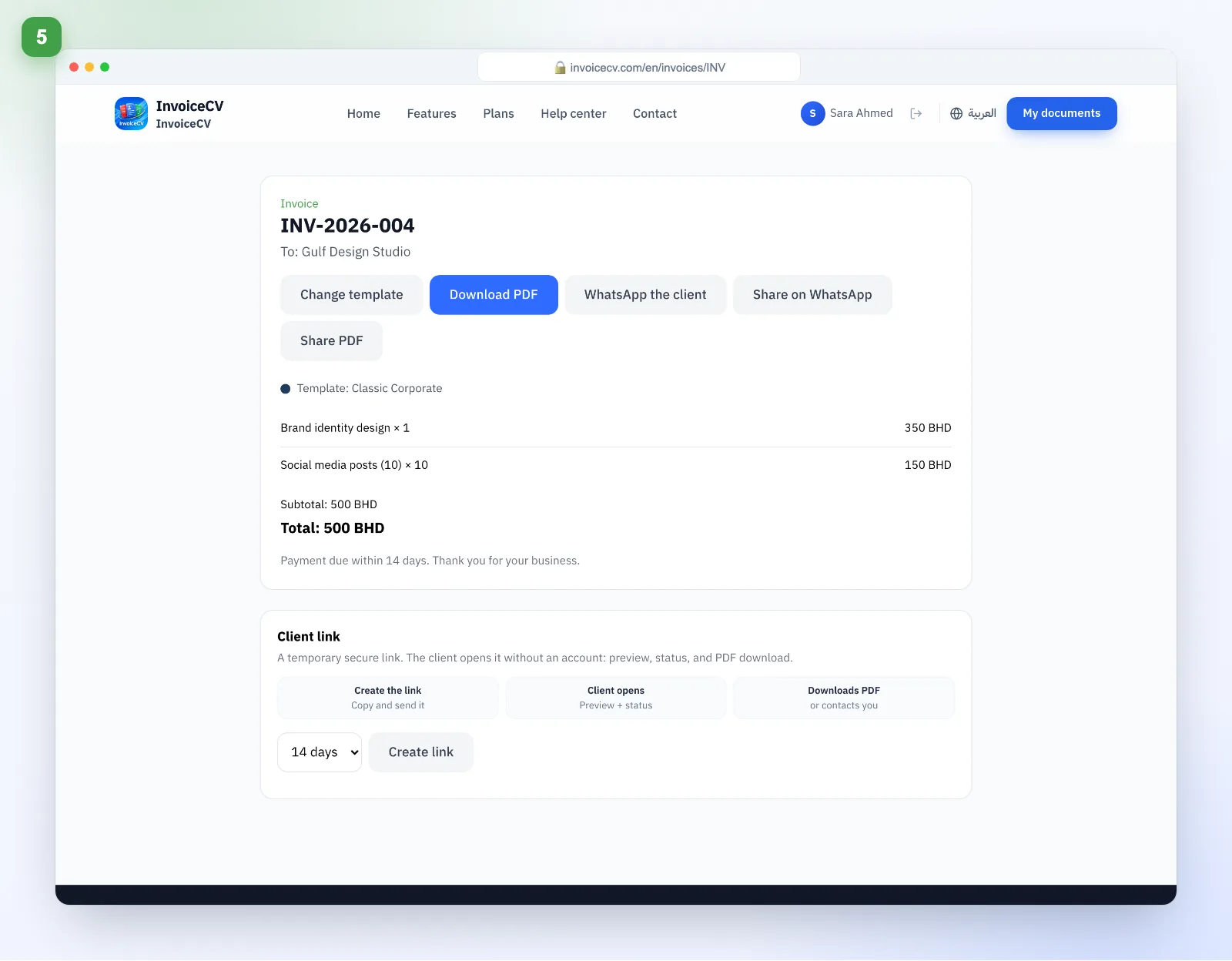
Share or download
From the invoice page: download PDF, share on WhatsApp or record a payment.
- 6
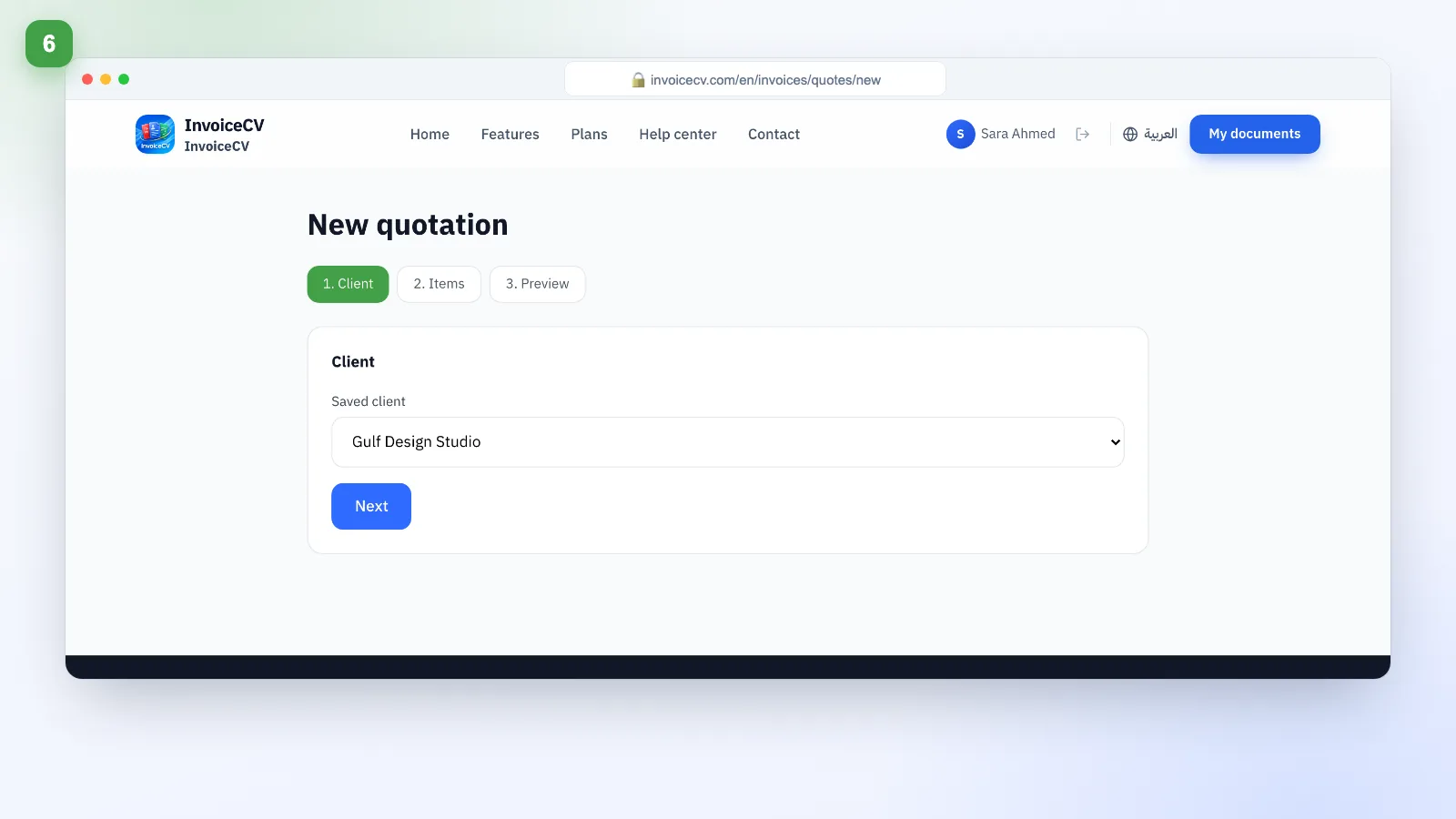
Create a quotation
Same flow from “New quotation”.
- 7
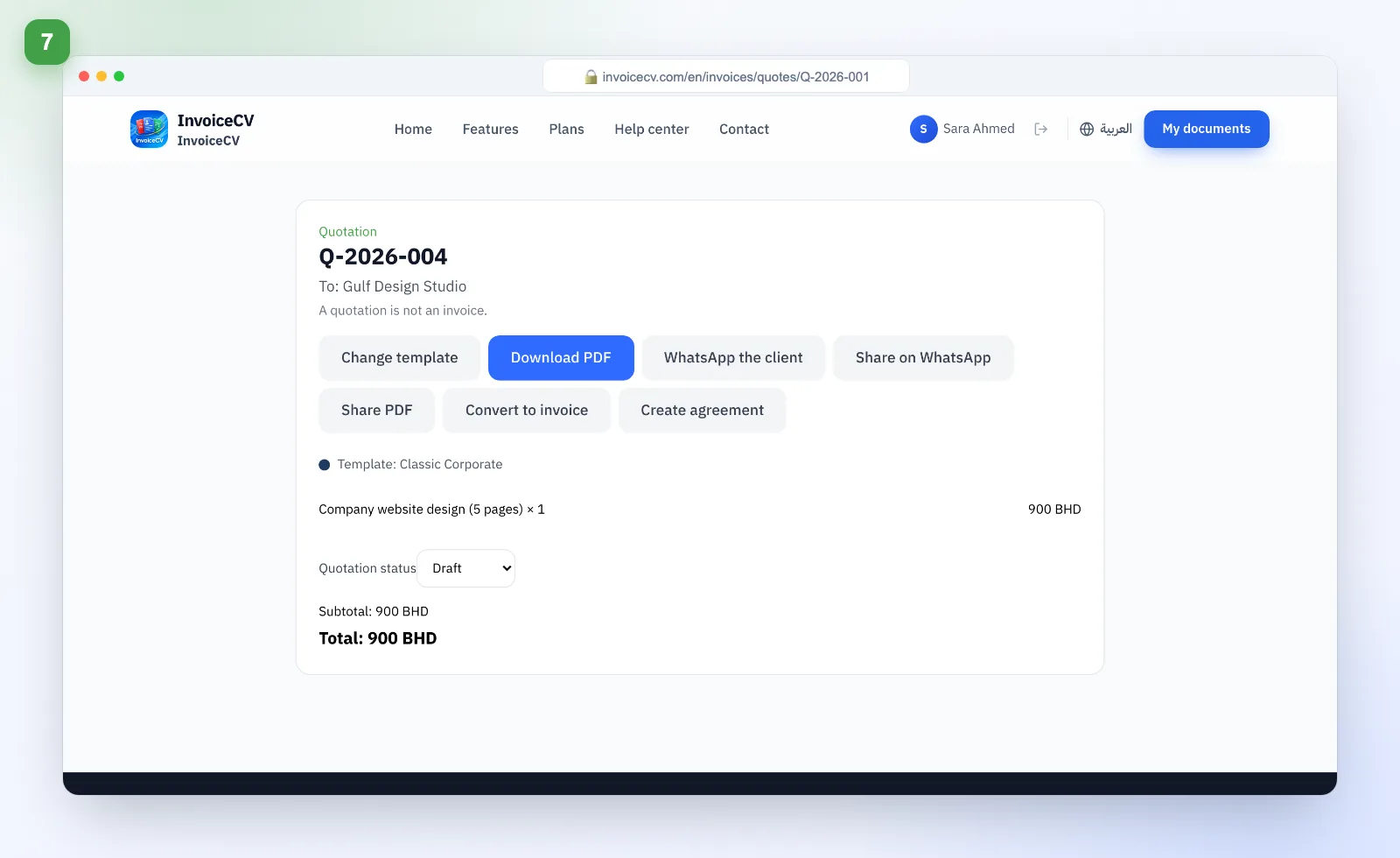
Convert to invoice
Once the client approves, convert the quote in one click.
Ready to start?
Start a new invoice